Hierarchical Completions
BigQuery uses a four-level resource hierarchy: project.dataset.table.column. Querylab.io's hierarchical completions help you navigate this structure with dot notation. Learn about BigQuery resource hierarchy.
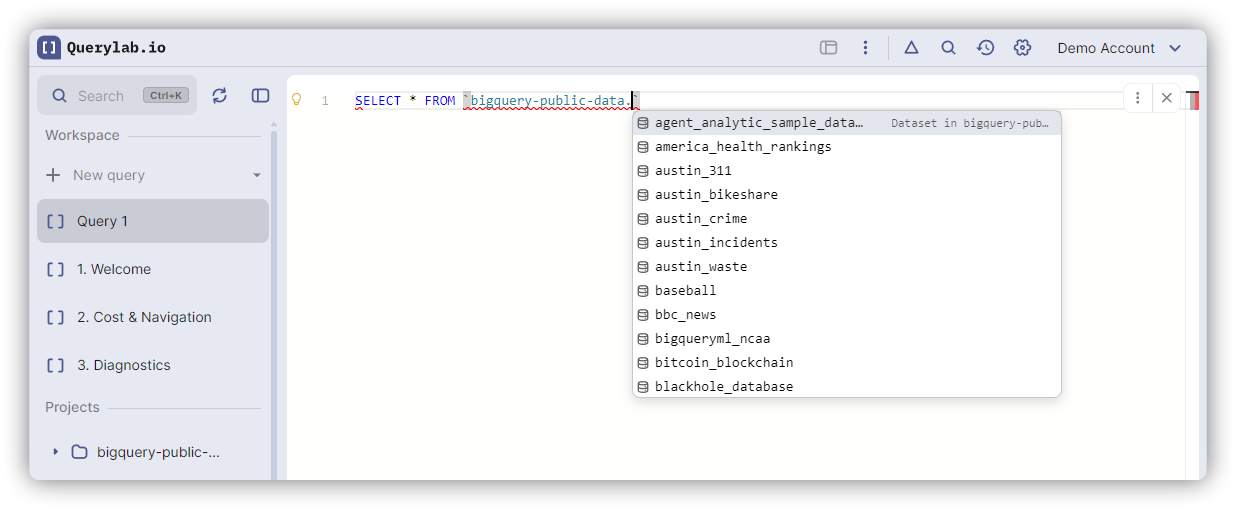
How Hierarchical Navigation Works
Type a dot (.) after any identifier to drill down into the next level:
FROM my-project.|
After typing the dot, completions show only datasets in my-project:
- my-project.analytics
- my-project.sales
- my-project.logs
Continue typing to navigate deeper:
FROM my-project.analytics.|
Now shows only tables in the analytics dataset:
- my-project.analytics.users
- my-project.analytics.events
- my-project.analytics.sessions
Four-Level Hierarchy
1. Project Level
FROM my-project.|
Shows all datasets in the project.
2. Dataset Level
FROM my-project.analytics.|
Shows all tables in the dataset.
3. Table Level
SELECT * FROM my-project.analytics.users.|
Shows all columns in the table (after typing FROM table.).
4. Column Level (STRUCT fields)
SELECT address.|
FROM users
Shows fields inside the STRUCT column:
- address.street
- address.city
- address.zip
Fully Qualified Paths
All table references appear as fully qualified paths in completions:
FROM |
Shows:
- my-project.analytics.users
- my-project.analytics.events
- other-project.dataset.table
Fuzzy matching lets you type partial text to filter. Type "users" and it matches "my-project.analytics.users".
Switching Between Dataset Variants
Hierarchical completions make it easy to switch between development, test, and production datasets:
FROM my-project.analytics|
As you type "analytics", completions show all variants:
- my-project.analytics
- my-project.analytics_dev
- my-project.analytics_test
- my-project.analytics_prod
Just select the variant you need.
Ambiguous Identifiers
When an identifier could be either a project or a dataset, the editor tries both:
FROM analytics.|
If "analytics" exists as both a project name and a dataset name, completions show:
- Datasets from project "analytics" (if it's a project)
- Tables from dataset "analytics" (if it's a dataset in the default project)
Backtick Support
BigQuery allows dashes in project IDs without backticks:
FROM my-project-123.|
Works. Backticks are optional for projects:
FROM `my-project-123`.|
Both forms trigger hierarchical completions.
For identifiers with spaces or special characters, use backticks:
FROM `my project`.`my dataset`.|
Without Dot - Show Full Paths
When you haven't typed a dot yet, completions show fully qualified paths:
FROM |
Shows complete table paths:
- my-billing-project.analytics.users
- my-billing-project.sales.orders
For STRUCT columns, shows up to 2 levels of nesting:
SELECT |
FROM users
Shows:
- address.street (2 levels)
- address.city
- user_id (1 level)
Progressive Disclosure
Type dots to drill deeper into nested structures:
SELECT data.|
Shows immediate children only:
- data.user
- data.timestamp
SELECT data.user.|
Shows next level:
- data.user.profile
- data.user.email
SELECT data.user.profile.|
Shows fields:
- data.user.profile.name
- data.user.profile.bio
Visual Indicators
Completions use icons to distinguish resource types:
- Projects: Module icon
- Datasets: Folder icon
- Tables: Table icon
- Columns: Field icon
- STRUCT fields: Property icon
Completion Chaining
After accepting a hierarchical completion, the editor shows the next level (even if "Chain Completions" is disabled in settings).
This is namespace navigation - you explicitly typed the dot, so the editor shows what's inside:
FROM my-project.     [Accept "analytics" completion]
FROM my-project.analytics.|    [Completions appear automatically]
You don't need to press Ctrl+Space again.
BigFunctions
BigFunctions are community UDFs for AI, data transformation, and utilities. Navigate with dots:
bigfunctions.|          -- Shows regions (us, eu, etc.)
bigfunctions.us.|       -- Shows all functions with docs
Example: SELECT bigfunctions.us.sentiment_score(text) FROM reviews
See Auto-Completions for general completion behavior.
Related Features
- Auto-Completions - General completion behavior and triggers
- Ghost Completions - Inline suggestions