Authentication
Querylab.io uses your Google account to access BigQuery. The web app signs you in through a browser OAuth flow; the desktop app gives you a choice between that same OAuth flow and your existing local gcloud credentials.
Web app
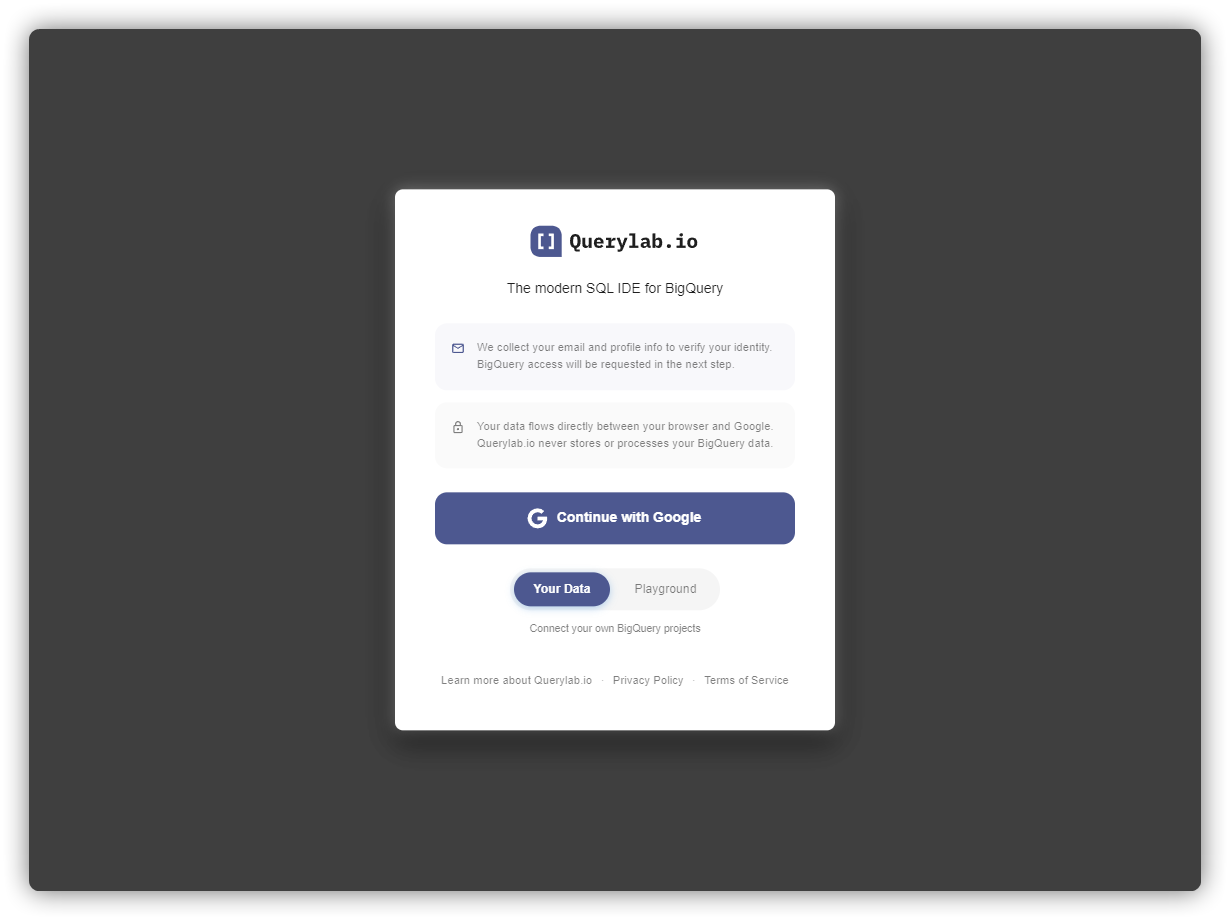
Sign in with Google from the Querylab.io landing page. That's it. No extra configuration needed.
Desktop app
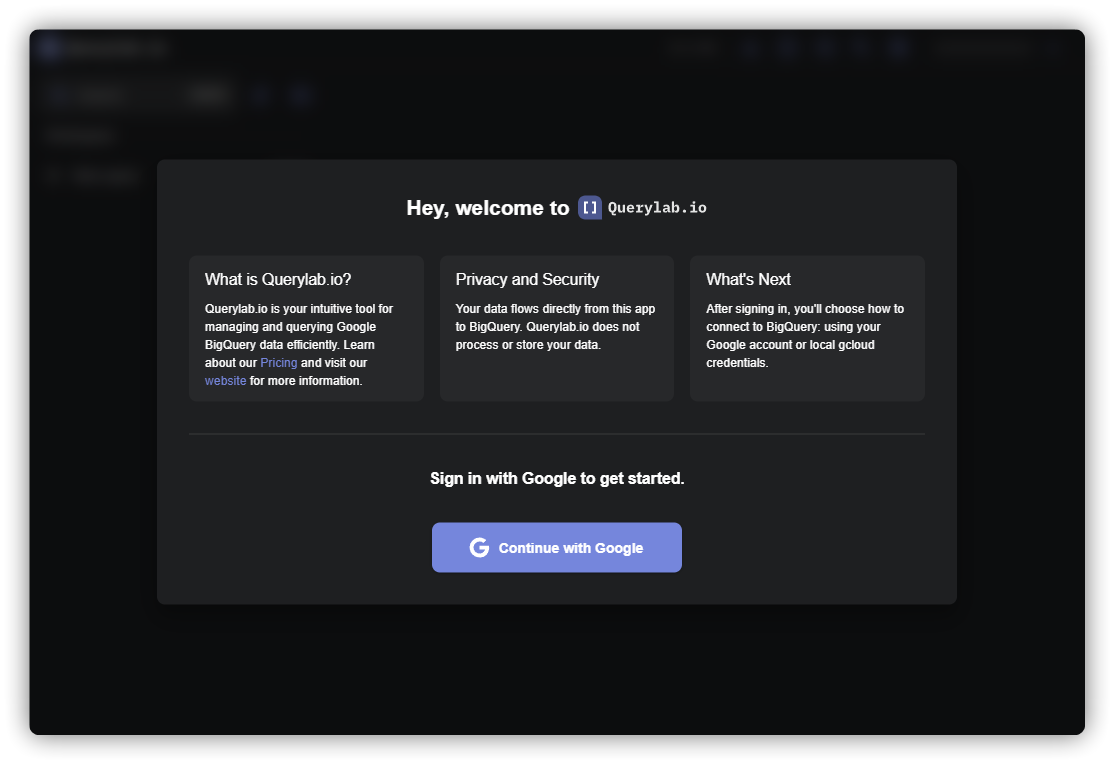
When you open the desktop app for the first time, you'll see two sign-in options:
- Sign in with Google — opens a browser window for the standard Google OAuth flow. Your tokens are stored in your OS Keychain and never leave your device.
- Continue with local gcloud — uses the credentials already on your machine from
gcloud auth application-default login. Nothing is sent to Querylab.io servers.
The app shows a Recommended label next to whichever option it thinks fits your setup: if it detects valid local gcloud credentials, it recommends those; otherwise it recommends Google sign-in. Either option works regardless of the recommendation; it's just a hint.
Before clicking either button, tick the Terms of Service checkbox. There's also a checkbox to share anonymous usage data with us to help improve the app (ticked by default; un-tick to opt out).
After signing in, the app asks you to select which BigQuery projects to load. If you signed in with the wrong account, click Switch account on that screen to go back and try again.
OAuth scopes
Required
| Scope | Purpose |
|---|---|
bigquery | Query execution and metadata access |
Optional (requested only when you use the feature)
| Scope | Feature |
|---|---|
cloudplatformprojects.readonly | Project discovery (read-only list of your GCP projects) |
cloud-platform | Scheduled queries (requires Data Transfer API access) |
drive.file | Export query results to Google Sheets |
If you sign in via local gcloud credentials, Querylab.io inherits whatever scopes you granted when you ran gcloud auth application-default login — it doesn't request additional ones. If a feature needs a scope you didn't include, re-run gcloud auth application-default login --scopes=... to add it.
Where your credentials are stored
| Platform | Storage location |
|---|---|
| Web app | Encrypted and stored on Querylab.io servers |
| Desktop — Google sign-in | Your OS Keychain (tokens never leave your device) |
| Desktop — local gcloud | ~/.config/gcloud/application_default_credentials.json, managed entirely by gcloud |
Switching accounts
- During desktop setup — click Switch account on the project selection screen to return to the sign-in screen.
- After setup (desktop) — use the account menu in the top-right corner of the app.
- Web app — sign out, then sign in with a different Google account.
See also
- gcloud Auth — how to set up ADC, choose projects, and refresh tokens
- Local Credentials — details on how the desktop app stores and accesses credentials